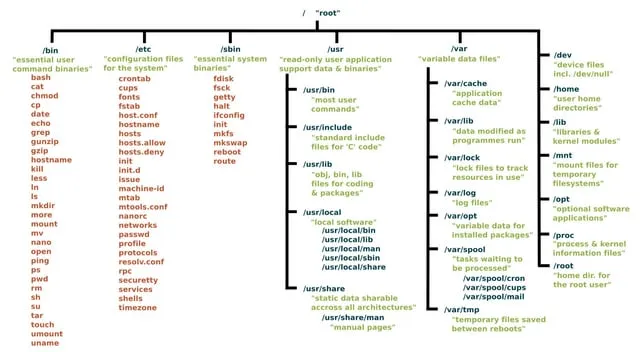
Demystifying the Linux File System: A Developer’s Guide to Directory Hierarchy and Architecture
Whether you are configuring Nginx server blocks, setting up Docker containers with mounted volumes, or debugging production logs, a solid understanding of the Linux file system hierarchy is non-negotiable. Unlike Windows, which separates files across logical drive letters (C:, D:), Linux views the entire storage infrastructure through a single, unified virtual directory tree rooted at a single slash (/).
In this guide, we will break down the Filesystem Hierarchy Standard (FHS), explore key system directories, and examine practical operations every developer should master.
The Single Root Philosophy
At the very top of the Linux hierarchy is the root directory, denoted simply as /. Every file, directory, hard drive, SSD, network share, and external USB device is attached somewhere beneath this single tree. Even when you mount a brand-new NVMe drive or an S3-compatible bucket, it doesn't get its own letter; instead, it is grafted onto an existing directory path (e.g., /mnt/data or /var/lib/docker).
Navigating the Core Directories (FHS Explained)
The Filesystem Hierarchy Standard defines the purpose of each top-level directory. Here are the essential ones you will interact with daily:
/bin and /usr/bin (Binaries)
Contains essential user command binaries (like ls, cp, cat, grep). /bin holds binaries required for single-user mode and system recovery, while /usr/bin contains general user applications and scripts.
/etc (Configuration Files)
The nerve center for system configuration. All system-wide configuration files—ranging from Nginx server blocks (/etc/nginx/) and network interfaces to database credentials and cron jobs—live here in plain text format.
/home (User Home Directories)
Personal directories for regular system users (e.g., /home/developer). This is where user documents, shell configuration files (like .bashrc or .zshrc), and project workspaces reside.
/var (Variable Data)
Stands for "variable." This directory stores data that dynamically changes during system operation. Crucial subdirectories include:
/var/log/: System and application logs (syslog, auth.log, nginx access/error logs)./var/www/: Default location for web server hosting files./var/lib/: State information, database files (PostgreSQL, MySQL), and container storage.
/tmp and /var/tmp (Temporary Files)
Used by the system and applications to store temporary files. Files in /tmp are often cleared upon reboot or by automated tmpfiles cleanup daemons.
/proc and /sys (Virtual File Systems)
These do not exist on your physical hard drive. They are pseudo-filesystems created dynamically by the Linux kernel in memory. They provide a window into kernel metrics, process states, hardware configuration, and performance statistics (e.g., CPU load, memory allocation).
Best Practices for Developers and DevOps Engineers
- Separate Partitions for
/varand/home: Prevent runaway log files or massive database tables in/varfrom filling up the root partition and crashing the operating system. - Leverage Symbolic Links (Symlinks): Use
ln -sto link application assets or configuration files neatly across directories without duplicating data. - Monitor Disk I/O and Inodes: Running out of inodes (index nodes) will halt file creation even if disk space appears available. Use
df -ialongsidedf -hduring server health checks.